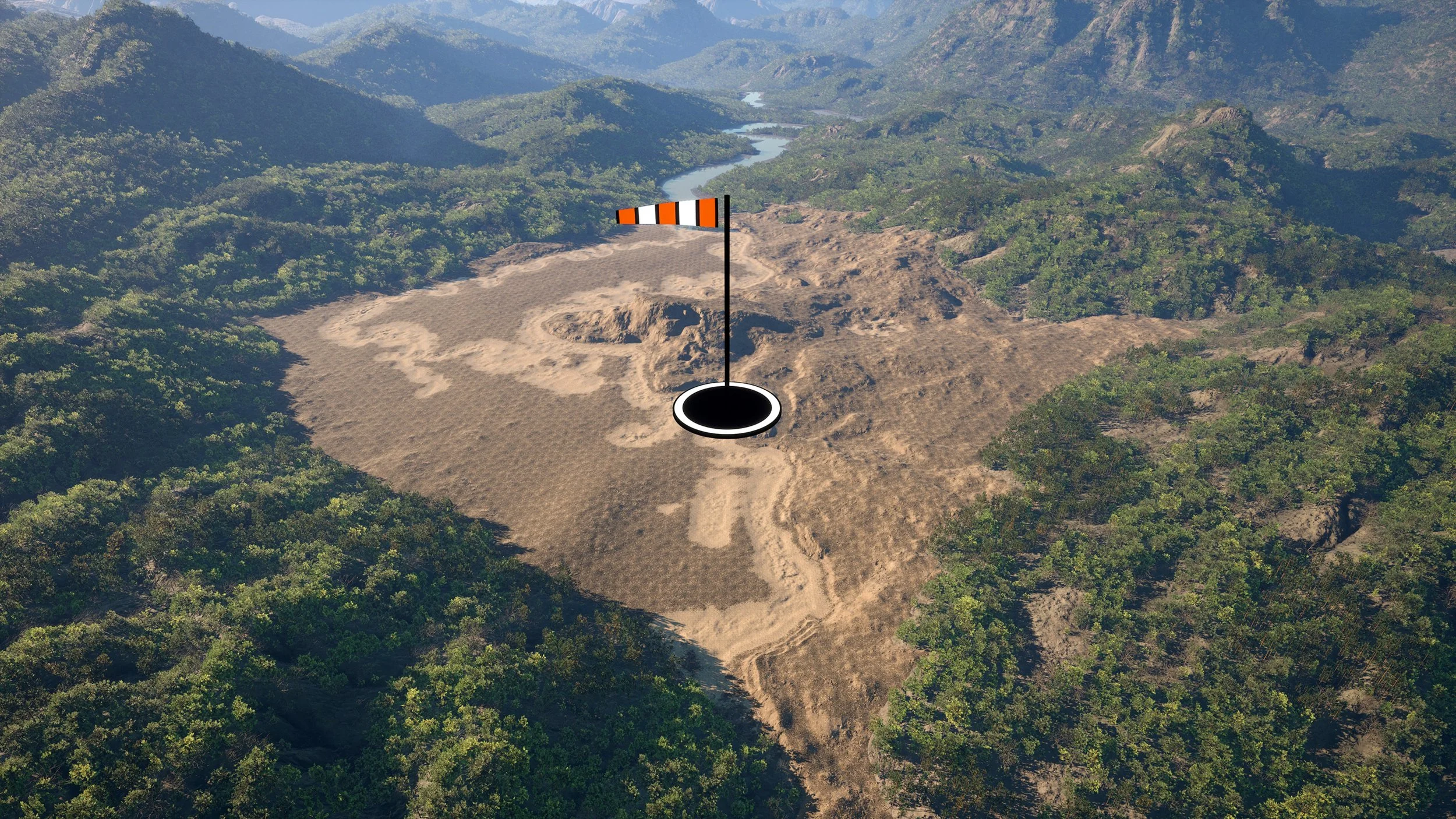
BP_Biome icon

Biome

Spawn and Manage PCG Biome

BP_Biome — Spawns biomes such as forests, meadows, deserts, and fields, depending on the assets you own, while also managing biome intersections. It’s flexible and efficient, offering adjustable parameters and multiple presets stored in Data Tables. For more details, see Biome Presets.

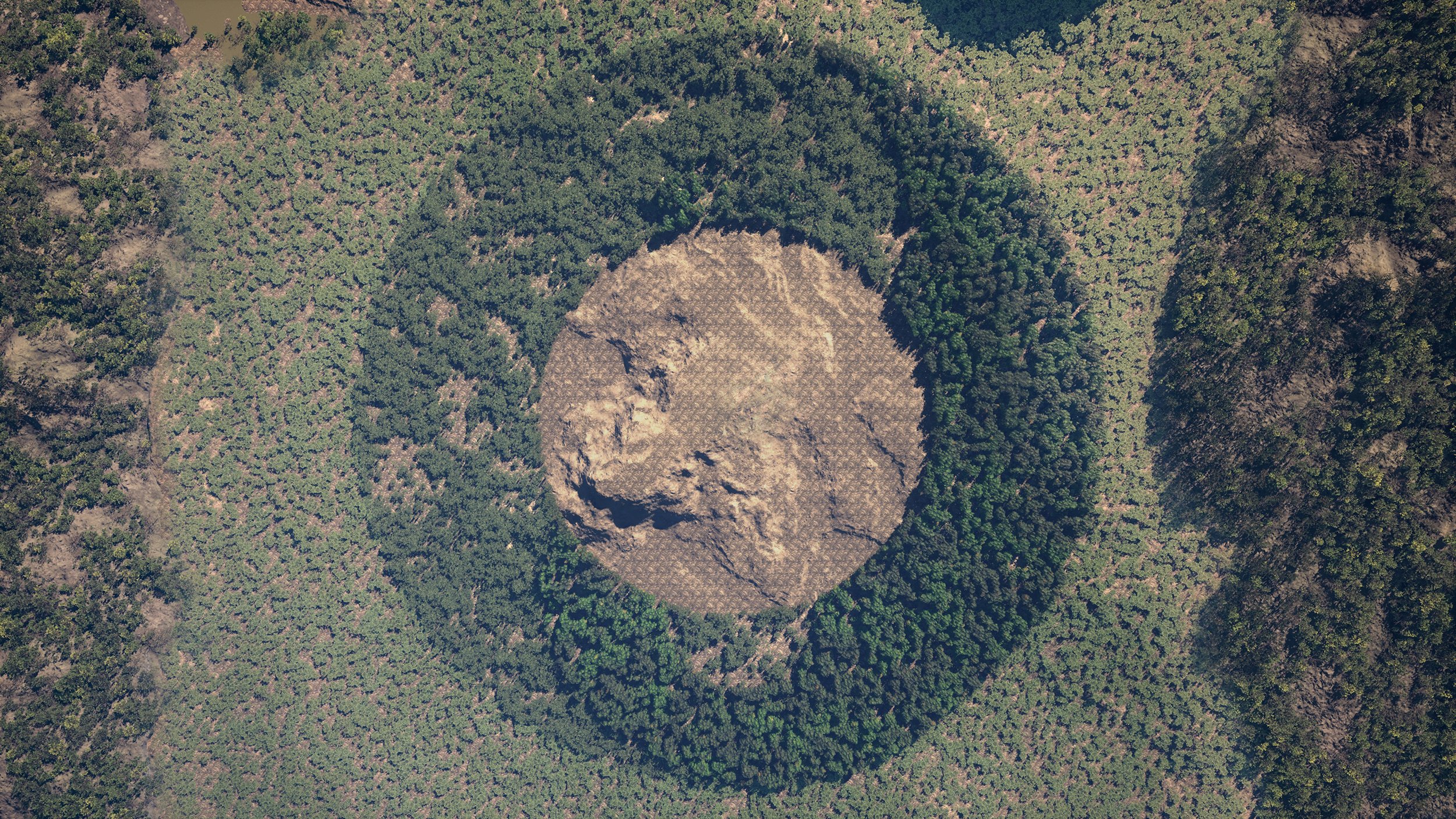
Biome preview

EasyBiomes – Unreal Engine Forest Biome

A complete, ready-to-use forest biome system for Unreal Engine 5

StartGrowing

BP_Biome icon

How To: Land

Spawn and Manage PCG Biome

Use the biome system by placing and configuring spline-bounded or landscape-based biomes, assigning priorities, and letting the system automatically blend and resolve overlaps based on your settings.

Step 1
Create a new regular level with a Landscape Actor and add BP_FoliageManager. You don’t need to use our landscape material — EasyBiomes assets work independently of it. (Distant Mountains are available here EzBiomes 🛒)
Biome preview
Step 2
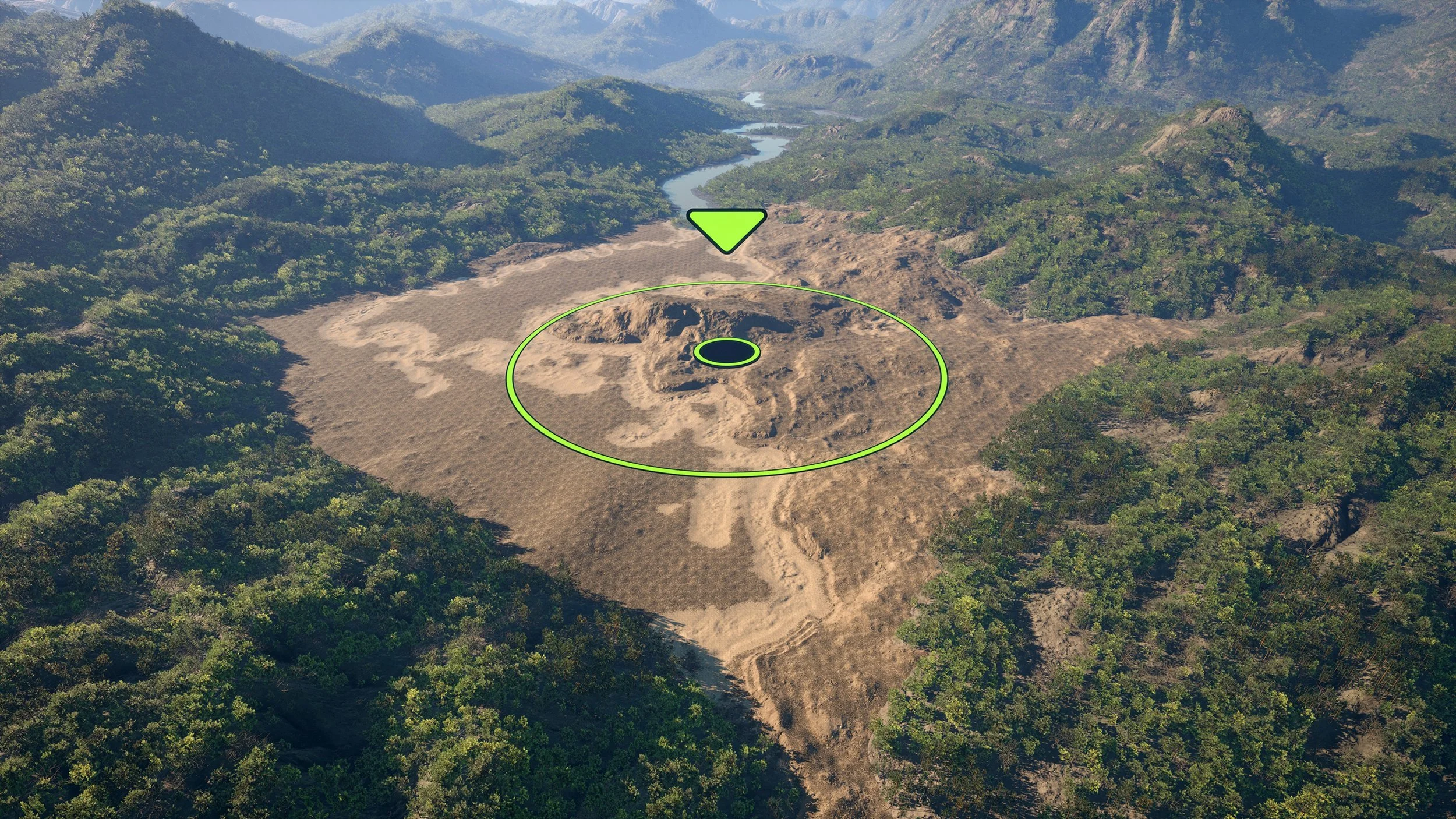
Place “/EasyBiomes/PCG/BP_Biome_(Biome Name)” in your level. This actor includes a spline that defines the biome’s boundaries. To adjust the spline, move its points individually. Note that spline components cannot be scaled or rotated. You can remove points by selecting one and pressing Delete, and add new points by selecting a point, holding Shift, and dragging it. You can also enable "Fill Landscape" option to ignore spline and cover whole landscape instead.
Biome preview
Step 3
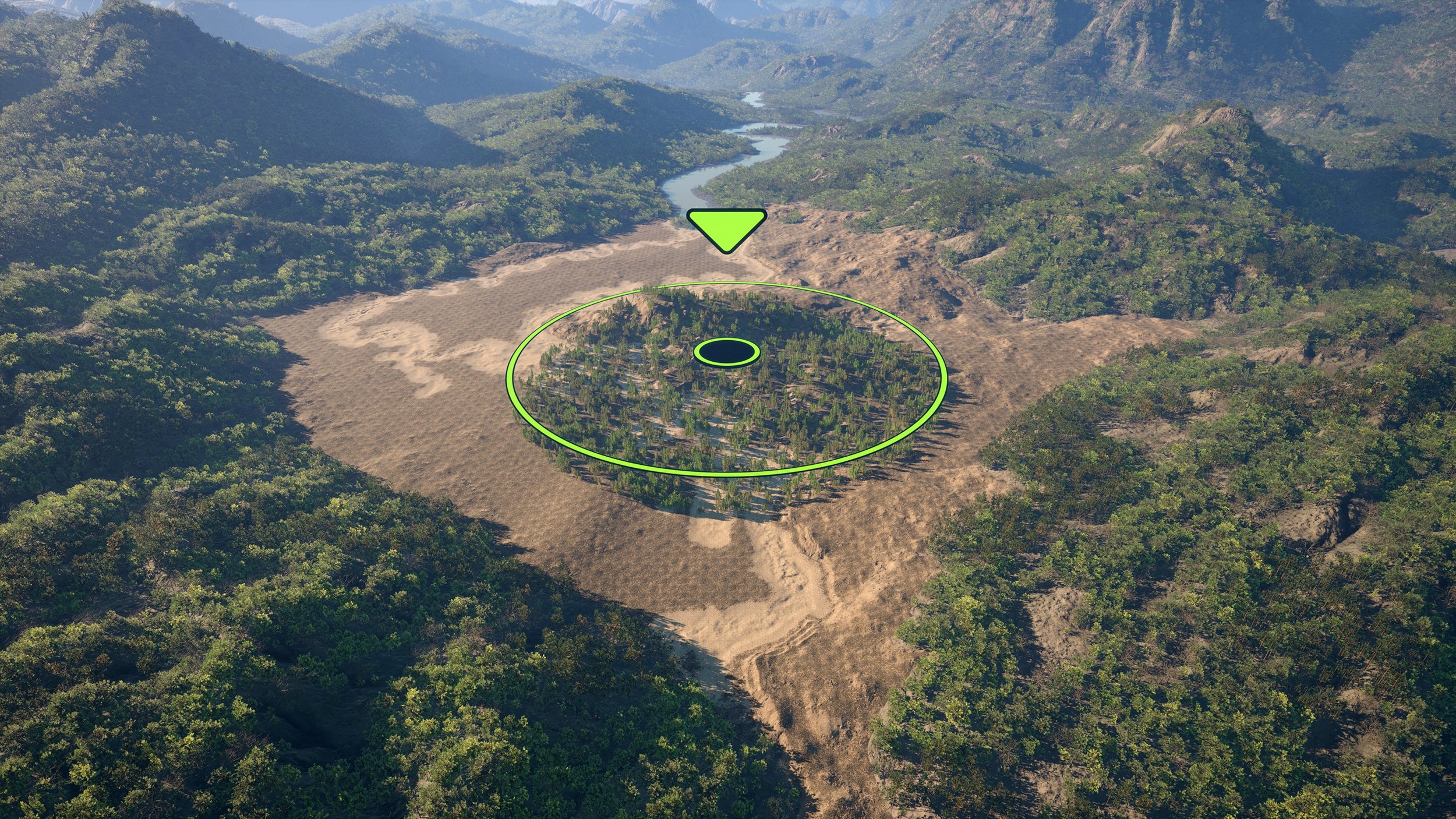
Once you’re happy with your biome’s shape, select the BP_Biome_(Biome Name) and press Spawn.
Some options are disabled by default to speed up testing and experimentation. You can enable them at any time. Most noticeably, grass and plants are turned off — you can enable them under Spawn Options → Land. See the detailed actor description above.
Whenever you make changes, you need to respawn the biome to apply them.
Biome preview
Step 4
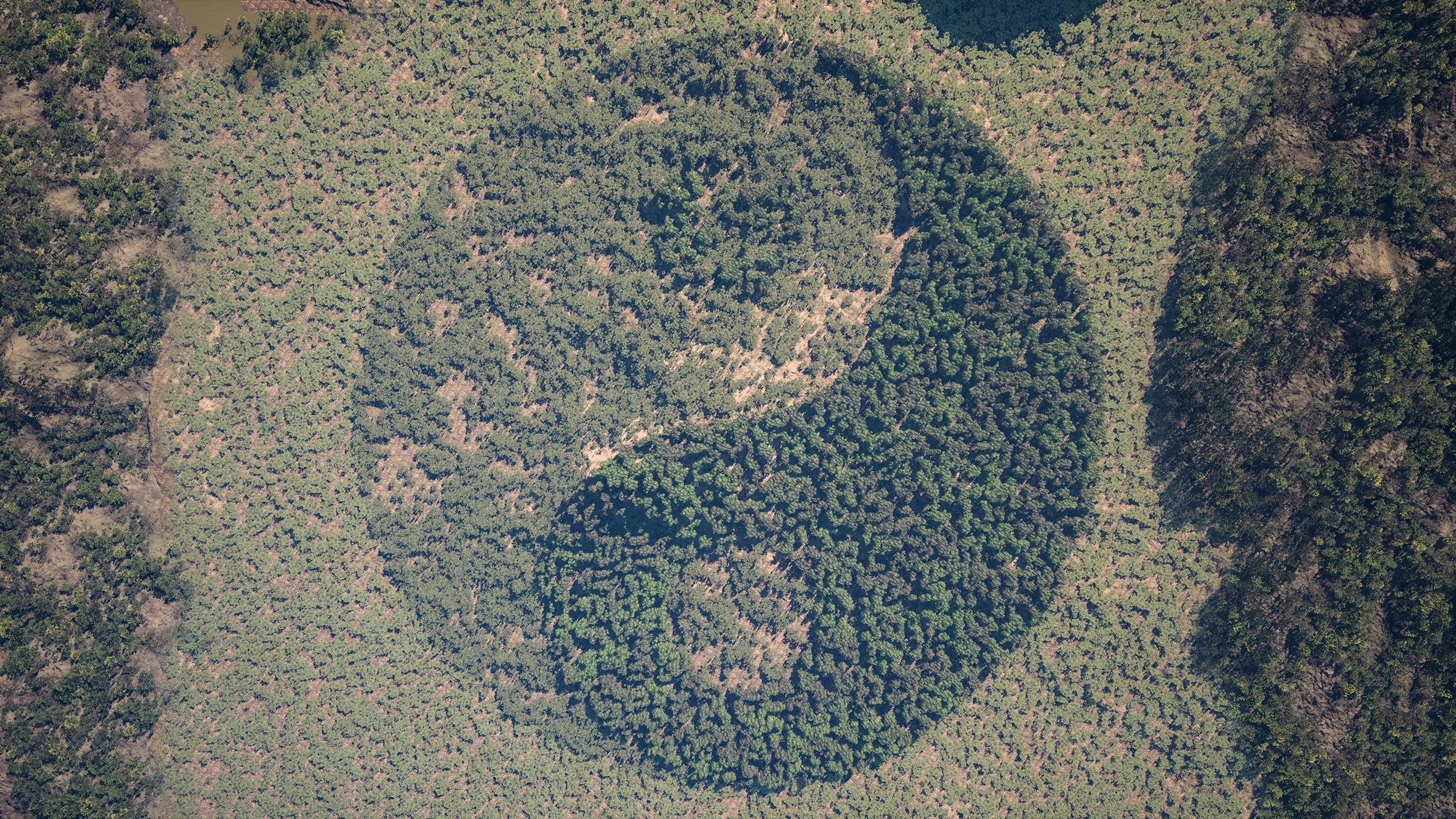
You can have as many biomes as you want in the same level. Biome intersections are resolved automatically. If two spline biomes overlap, one should be set Top Priority. For more information, see the Biome Priorities section below.
Biome preview
Step 5
If you want to exclude particular foliage from a specific area, there’s a dedicated tool available. See the Biome Remover page for details.
Biome preview
BP_Biome icon

How To: Water

Spawn and Manage PCG Biome

Use the biome system by placing and configuring spline-bounded or landscape-based biomes and letting the system automatically blend and resolve overlaps based on your settings.

Important!
Please read the How To: Land section first for initial context.
Step 1
Create a new regular level with a Landscape Actor and add BP_FoliageManager. You don’t need to use our landscape material — EasyBiomes assets work independently of it. (Distant Mountains are available here EzBiomes 🛒)
Biome preview
Step 2
Place “/EasyBiomes/PCG/BP_Biome_(Biome Name)” in your level, move it up and down to adjust water level. You’ll see a preview water plane. This actor includes a spline that defines the biome’s boundaries. You can also enable "Fill Landscape" option to ignore spline and cover whole landscape instead.
Important!
You can’t have multiple River Biomes in the same level. If you need multiple spline areas, duplicate the spline component in the Level Blueprint: right-click the spline in the Components panel and select Duplicate.
Biome preview
Step 3
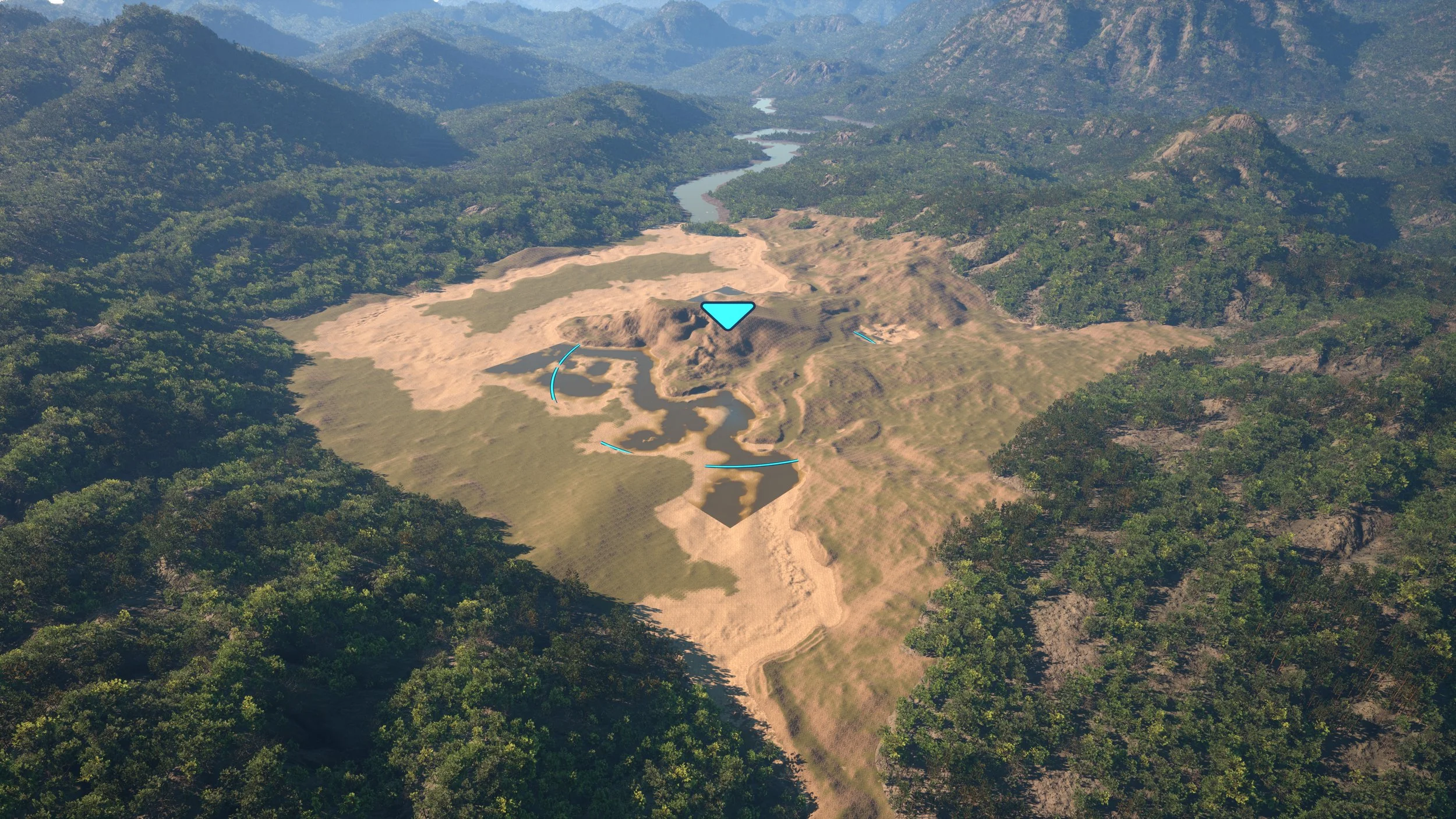
For this example, we’ll use the Fill Landscape option. When you enable it, the preview water plane is automatically stretched to the landscape bounds.
Biome preview
Step 4
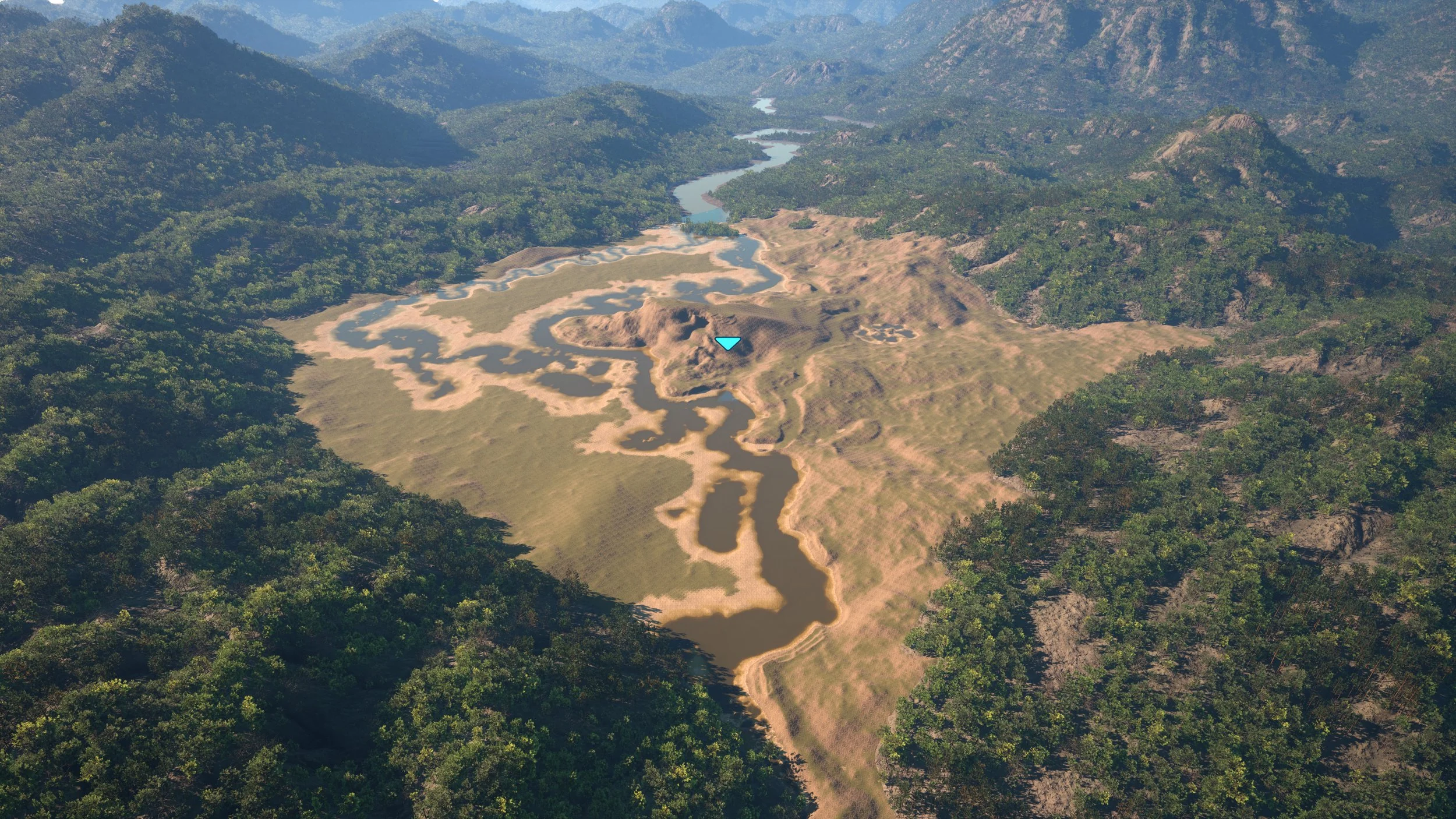
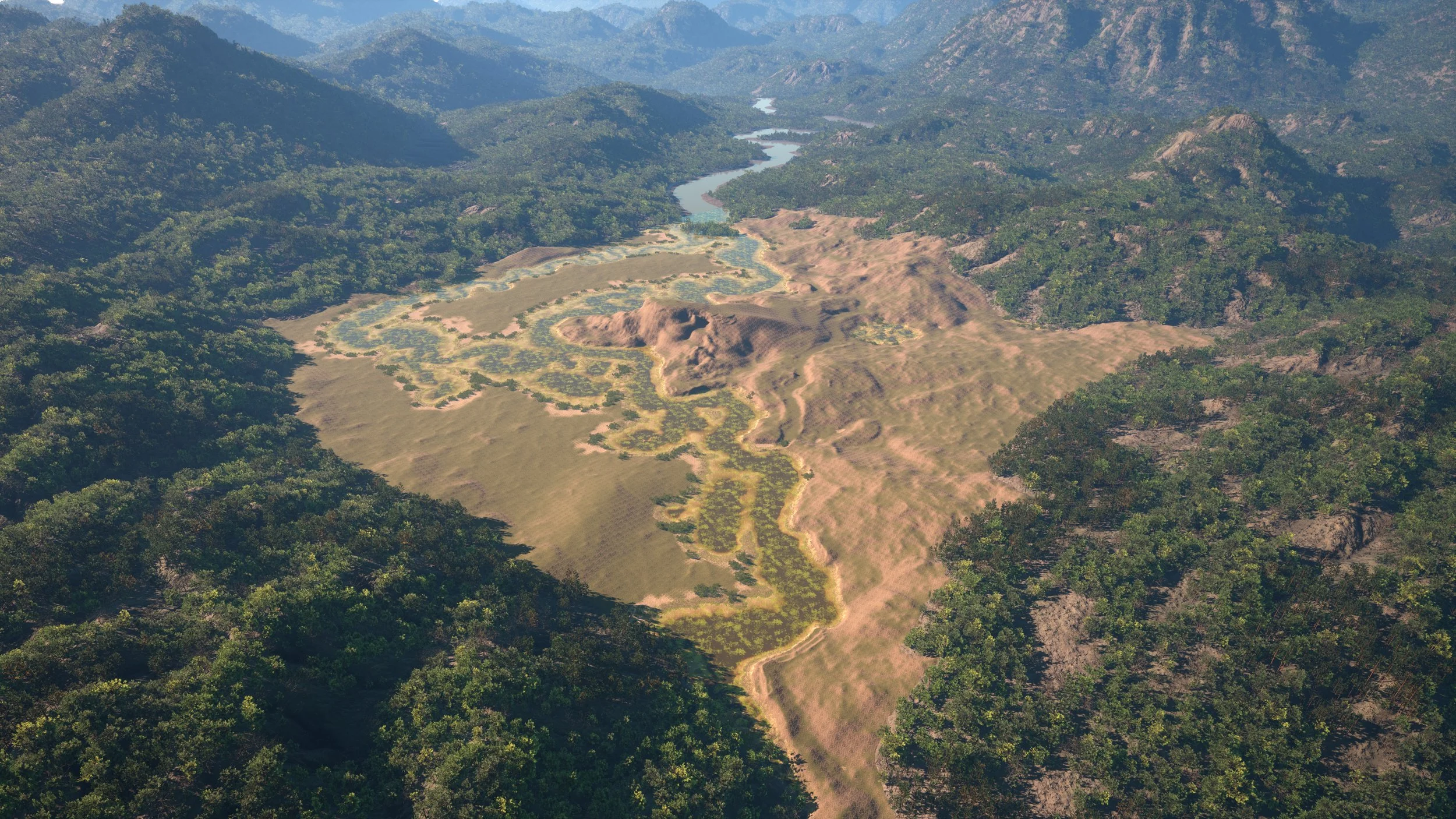
Once you’re happy with your biome’s shape, select the BP_Biome_(Biome Name) and press Spawn.
Biome preview
BP_Biome icon

Biome Priorities

Determines which biome appears on top when they overlap

Each biome is assigned a priority level that determines how it interacts with others. When regions overlap, higher-priority biomes replace lower-priority ones to control the final landscape layout.

Water Biome — Always Highest Priority
Rule
The water biome overrides all other biome types: roads, farmlands, forest strips, spline-bounded biomes, and fill-landscape biomes.
Exception
The only exception is when the water biome is spawned after other biomes or sub-biomes.
Fill-Landscape Biome — Always Lowest Priority
Rule
Fill-landscape biomes have the lowest priority regardless of spawn order.
Override Sources
They are always overridden by spline-bounded biomes, roads, water biomes, and any top/normal-priority biomes.
Limit
A level can contain only one fill-landscape biome plus one water fill-landscape biome.
Top Priority vs Normal Priority
General Rule
Both top-priority and normal-priority biomes outrank fill-landscape biomes.
Override Rule
Top priority and normal priority always mix together. If two biomes overlap, they should always be different priorities.
Roads
Roads cut through all biomes, including top-priority and normal-priority biomes, regardless of spawn order.
Biome preview
BP_Biome icon

Blend Modes

Determines the blending behavior between biomes

Blend — This category controls how different biomes blend into one another and sets priorities. It defines the transition behavior at biome boundaries, including how smoothly or sharply the change occurs.

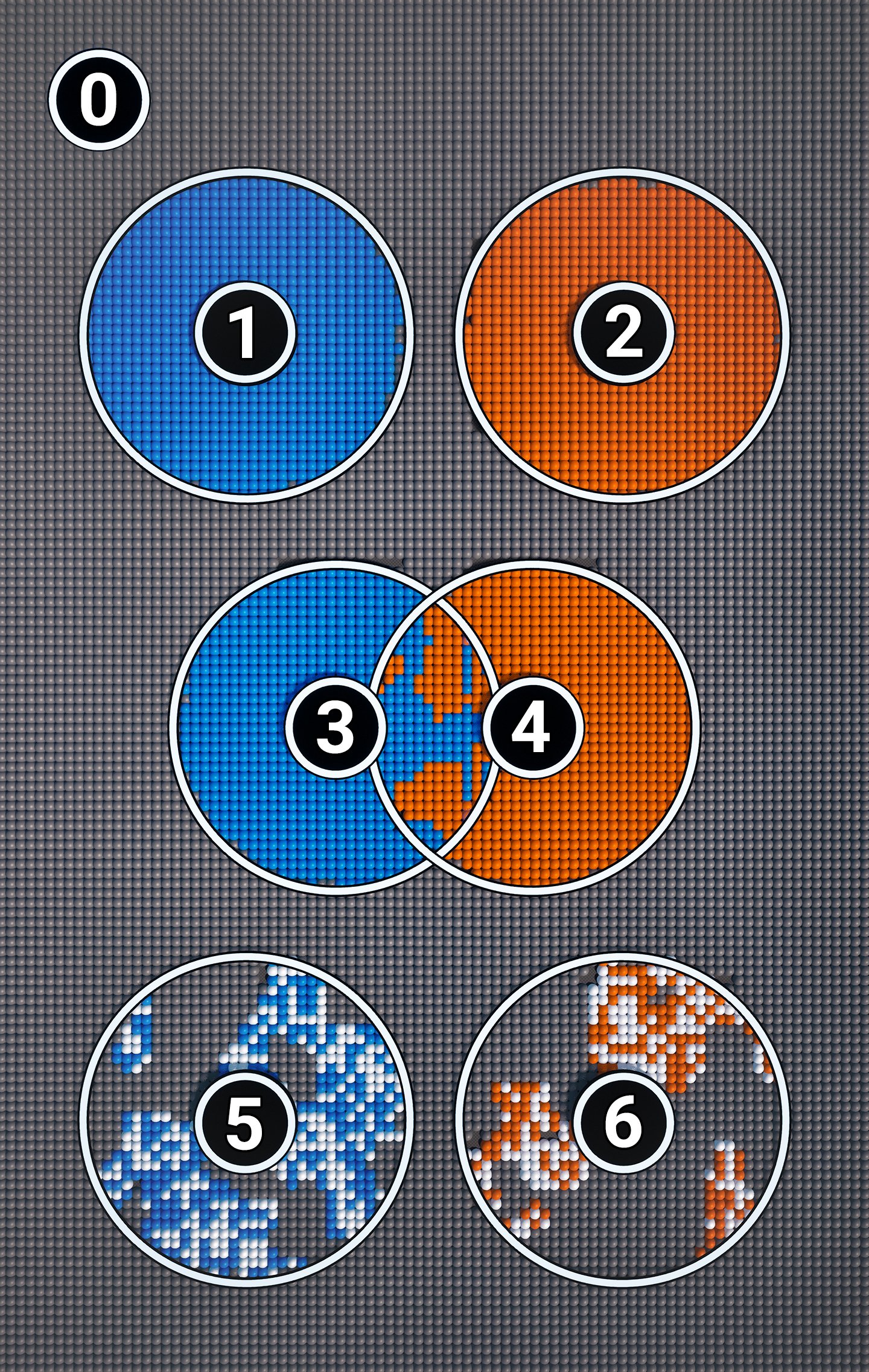
Option 0
Fill Landscape
A fill-landscape biome that covers the entire map and always has the lowest priority. Everything else — spline biomes, normal priority, top priority, roads, water — will override it.
Option 1
Normal Priority
A pure normal-priority biome. Higher than fill-landscape but lower than top priority.
Option 2
Top Priority
A pure top-priority biome with no overlaps. If two biomes overlap, they should be different priorities. There is no difference in other cases.
Option 3 and 4
Normal Priority and Top Priority Overlapping
A normal-priority biome and top-priority biome overlapping. Both always mix together. If two biomes overlap, they should be different priorities.
Option 5
Normal Priority (Mix In)
A normal-priority biome using Mix In mode. It does not override other biomes — instead, it blends with whatever biome is already present.
Option 6
Top Priority (Mix In)
A top-priority biome using Mix In mode. Instead of overriding anything, it blends with whatever biome is already present.
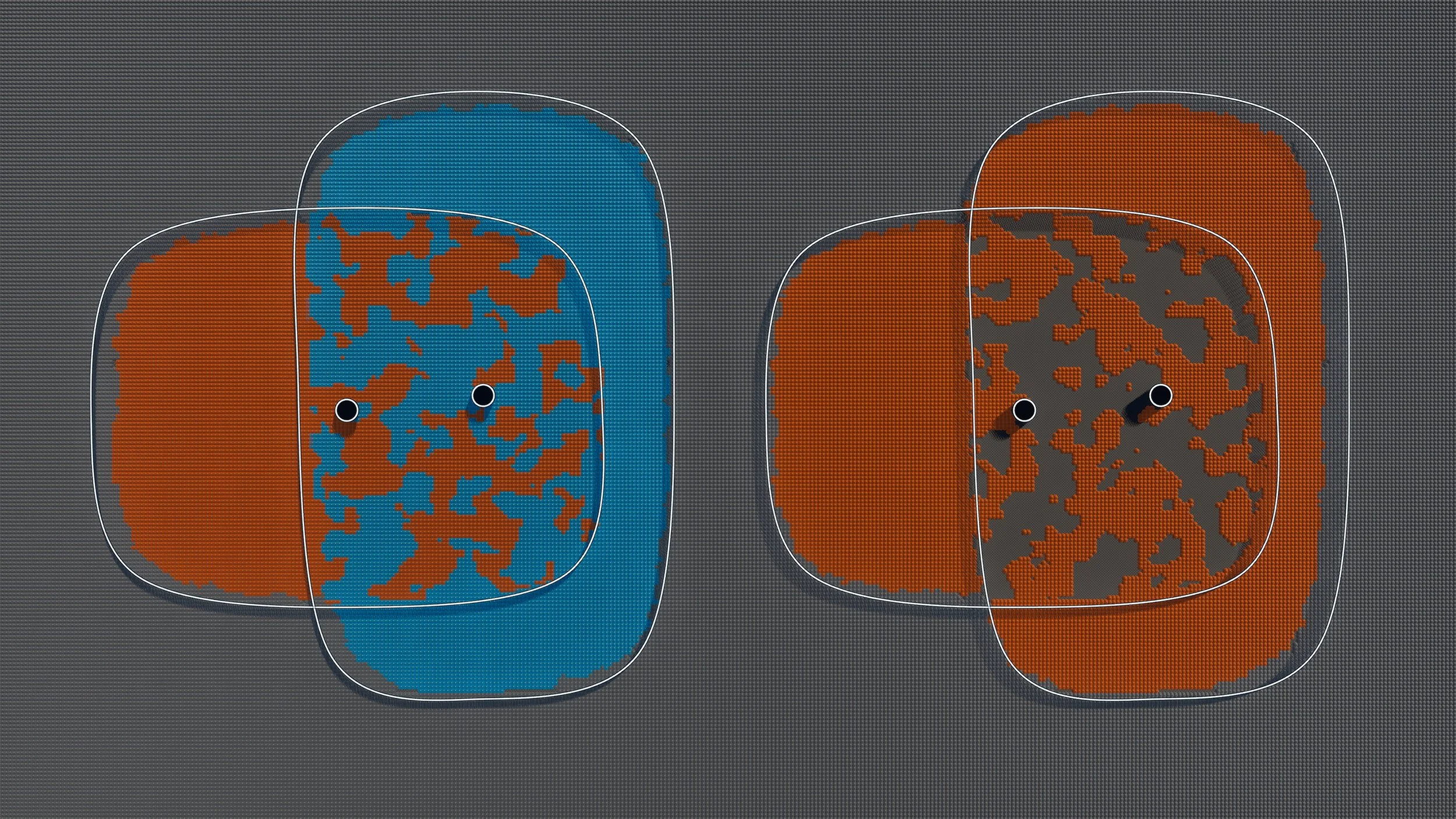
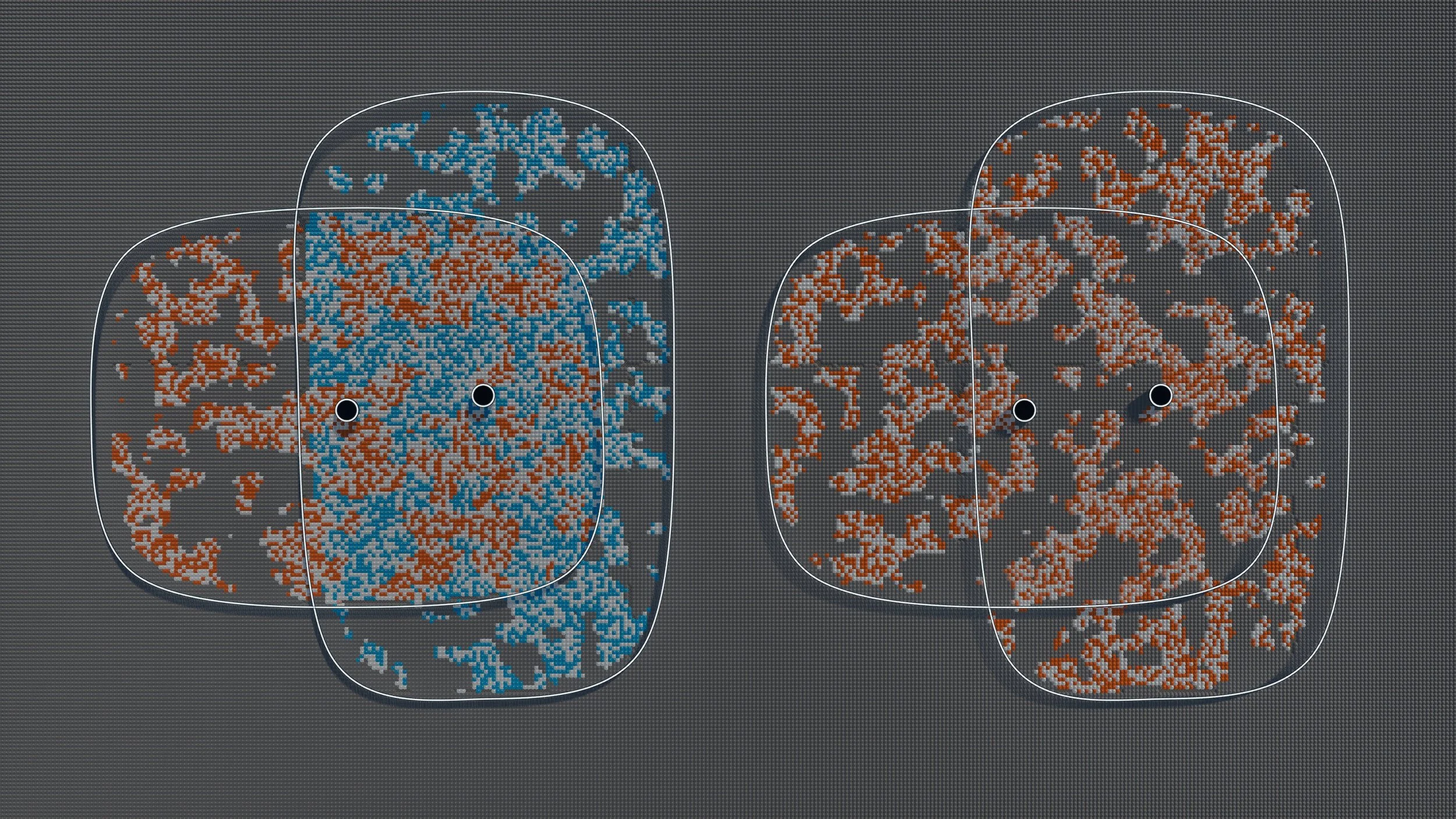
Before: Unreal Engine 5 Biomes with Mix In disabled After: Unreal Engine 5 Biomes With Mix In Enabled
Before
After
Before: Mix In option Disabled
Notice how two biomes to the right have the same priority while overlapping, which leads to incorrect blending. This is why two overlapping biomes should always have different priorities.
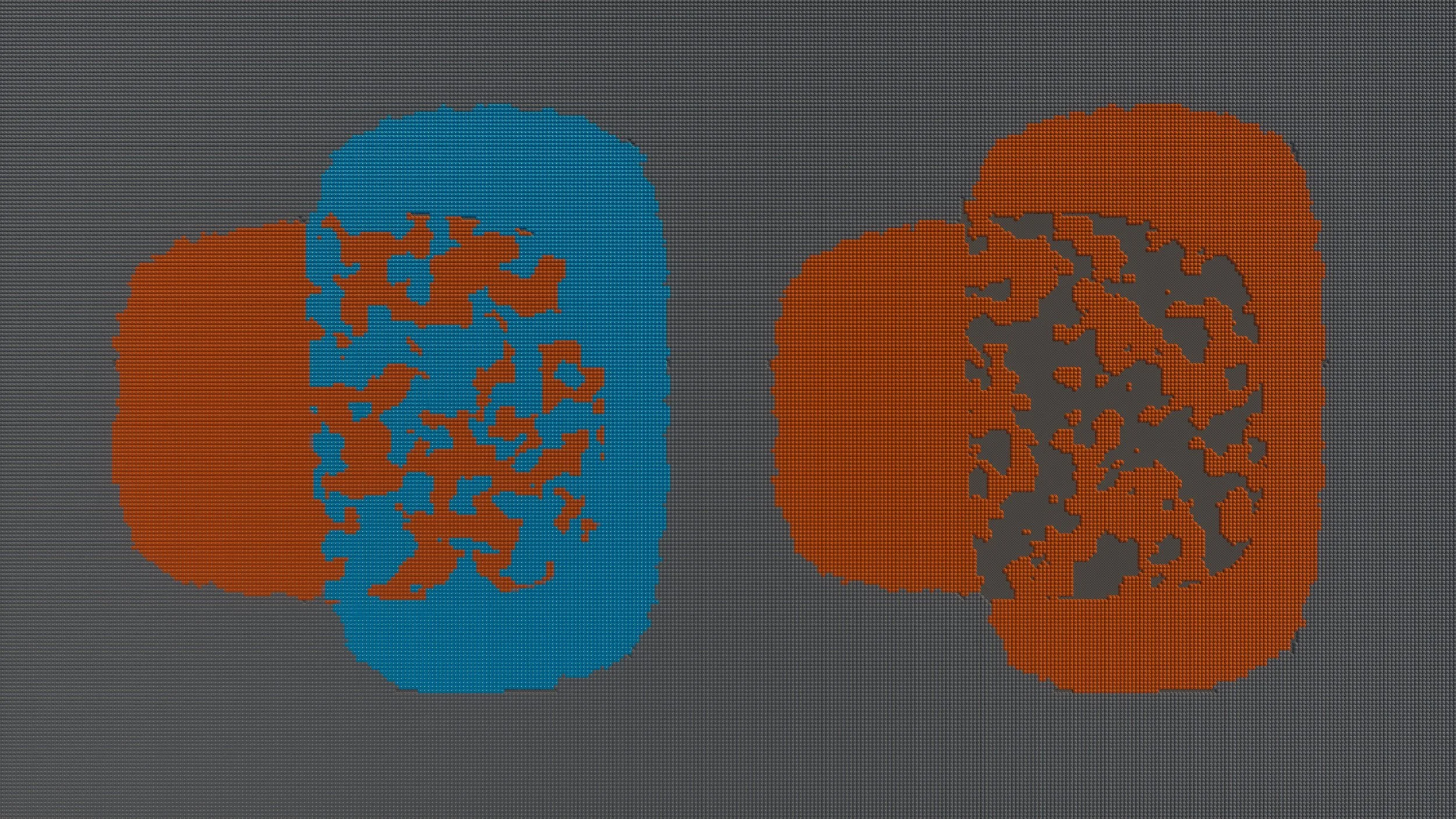
After: Mix In option Enabled
In Mix In mode, overlapping biomes should still use different priorities. The setup on the left is correct. Notice how Mix In mode only affects blending with the fill-landscape biome.
Biome preview
Description
Spline-bounded biomes use jagged edges when blending with fill-landscape biomes to create a more natural look.
Before: Unreal Engine 5 landscape without fallof After: Unreal Engine 5 landscape with fallof enabled
Before
After
Description
Left side - falloff disabled, biome has sharp edge, right side - falloff enabled, fades out smoothly.
Biome preview
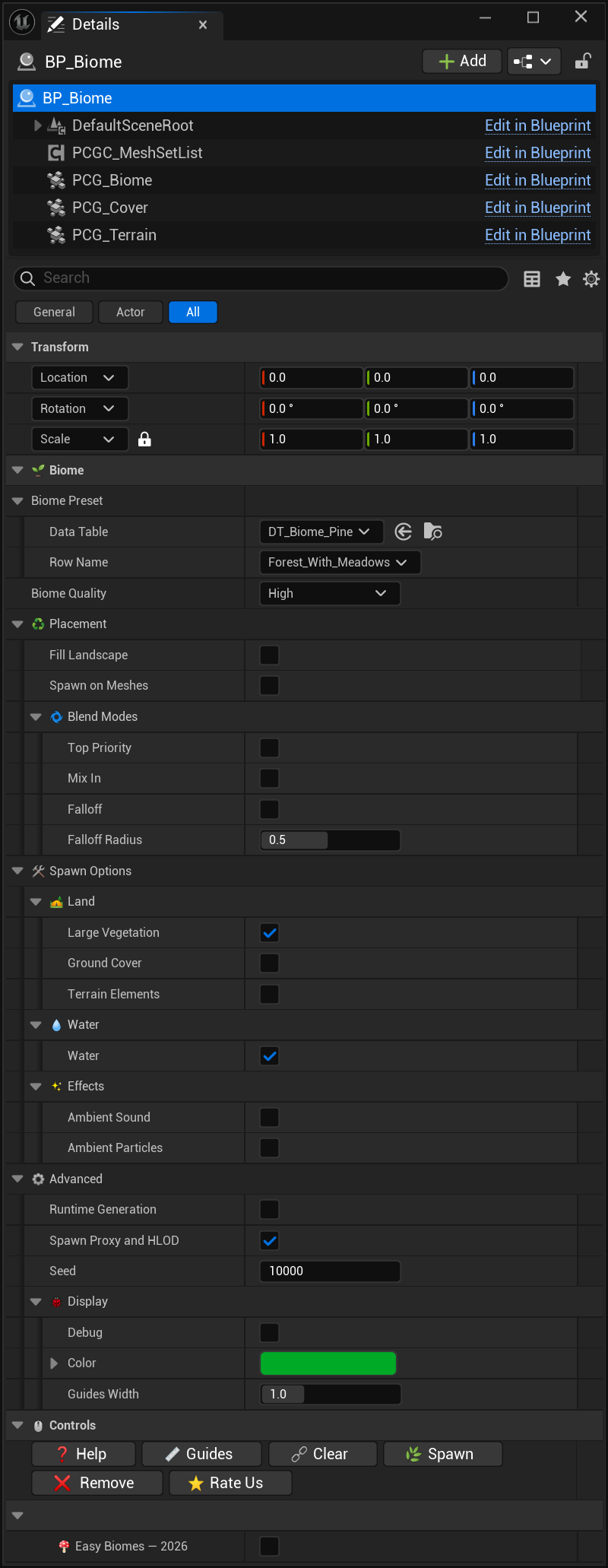
Details options are context-specific. Different sub-biomes may have different categories expanded or collapsed.
Biome
Biome preset
Data Table Dropdown
Biome presets and parameters are stored in data tables. For more info visit Biome Presets.
Row Name Dropdown
SubBiomes offer multiple presets. Select the preset you want to use here.
Biome Quality Dropdown
Defines the biome generation quality level. This setting influences foliage density, draw distance, WPO usage, shadowing behavior, and global illumination. High preset targets ~ 80–90 FPS on an RTX 4090 at 4K resolution with 50% Epic scalability. The Cinematic preset uses the same foliage density as High, but without mesh culling. Lowest disables WPO.
Advanced
Runtime Generation Checkbox
EXPERIMENTAL FEATURE. Forces all meshes to spawn at runtime instead of being stored in the level, significantly improving loading times.
Spawn Proxy And HLOD Checkbox
Replicates HLOD behaviour when Runtime Generation is disabled and sends proxies to the HLOD spawner when enabled.
Seed Value
Affects generation outcome. Each seed produces a different layout.
Spline
Accuracy Slider
Defines sampling precision along the spline for tighter turns or wider rows.
Double Resample Checkbox
Performs an additional resample pass for smoother overall shape. Helps reduce knots.
Spawn Options
Garden
Rows Value
Number of rows to the one side from the center in the garden layout.
Row Distance Value
Spacing between each row.
Garden Bed Checkbox
Enables garden bed generation.
Border Checkbox
Toggles border creation around the garden.
Border Width Slider
Width of the generated border.
Plants
Amount Slider
Plants amount.
Distance Value
Spacing between individual plants.
Scale Slider
Base scale multiplier for plants.
Position Random Slider
Adds positional randomness to plant placement.
Direction Slider
Sets the general facing direction of plants.
Direction Random Slider
Adds randomness to plant orientation.
Weed Slider
Controls the amount of weeds mixed into the plant rows.
Alling to Landscape Checkbox
Aligns plant meshes to the landscape surface.
Forest
Strip Width Slider
Sets the width of the forest strip along the spline.
Trees Amount Slider
Controls how densely trees are spawned.
Grass Amount Slider
Controls density of grass within the forest strip.
Road
Width Slider
Controls the road’s width along the spline.
Lift Value
Elevates the road mesh upward to avoid terrain clipping.
Separator Checkbox
Enables the center separator or divider.
Sides Checkbox
Enables roadside elements such as edges or borders.
Plants Amount Slider
Controls how much vegetation spawns alongside the road.
Controls
Help Button
Opens the Documentation page.
Guides Button
Toggles between minimal and full guides visualization.
Clear Button
Removes all PCG logic and converts biome meshes into Instanced Static Mesh Components.
Spawn Button
Spawns the biome.
Remove Button
Removes the biome.
About
Rate Us ⭐⭐⭐⭐⭐ Checkbox
A small review would mean a lot! ❤️